User guide Getting started
Getting started with Stamio
Install Stamio, let it read Health, and wear your watch. It takes care of the rest. Here's what happens in the first few days, and where everything lives.
Where iPhone and Apple Watch
Install and allow access
Stamio installs on your iPhone, and the watch app comes along with it. If it doesn't show up on your watch, open the Watch app on your iPhone, find Stamio and tap Install.
The first time you open it, Stamio asks to read Health: workouts, heart rate, heart rate variability and sleep. Everything is calculated on your iPhone and your watch; nothing goes to a server.
A few quick questions then set up your home screen, like what brings you here or whether you also run with another watch. You can change all of it later in Settings.
The first few days
Wear your watch day and night. Your first numbers show up after one night and one outdoor run: sleep, heart rate variability and readiness first, then VO2 max after your first outdoor run.
Training status takes about 4 weeks of workouts, so Stamio can learn your usual load.
Home screen and tabs
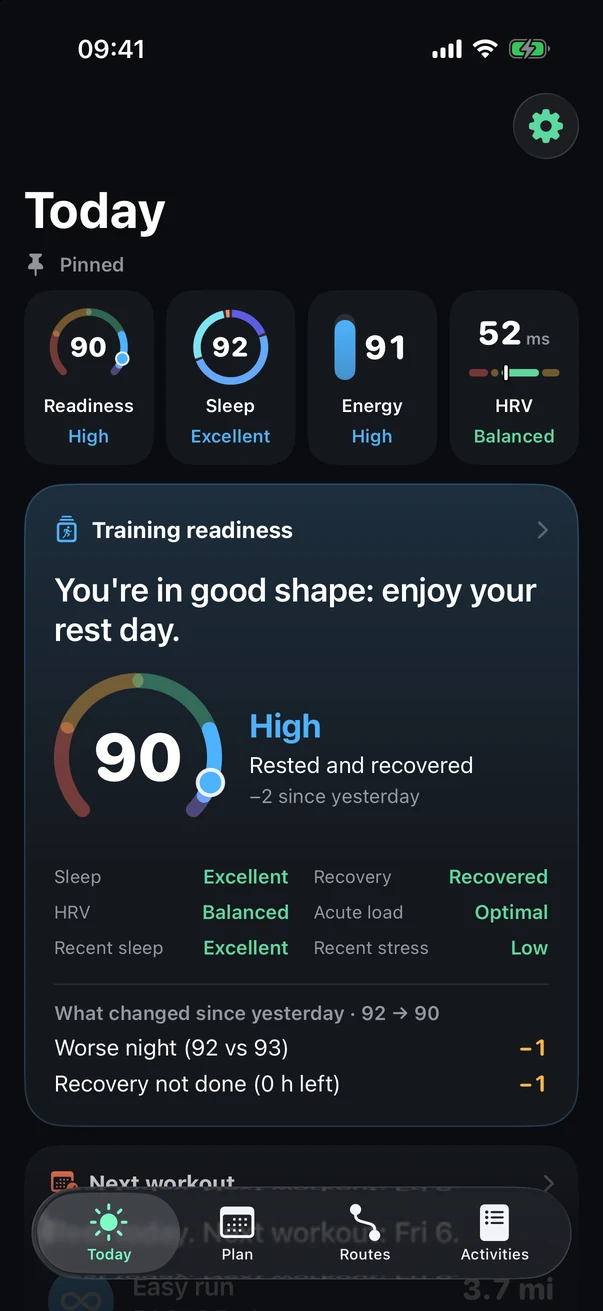
- Pinned
Your key numbers at a glance. Tap one to open it.
- Cards
Tap a card for its details. Organize, at the bottom of the home screen, picks which ones show and in what order.
- Settings
The gear: units, your watch, Strava, backup, data.
- Four tabs
Today (how you're doing), Plan (what you're doing), Routes (where you run), Activities (what you've done).
Tip Not sure what something means? Every screen has a "What is it?" that explains it in two sentences.
On your watch
The Stamio watch app opens to your fitness for the day or to your list of activities, whichever you prefer. Activities is where you start a run, a walk, a ride or a strength workout.
Next up: During your run.
See also: How readiness is calculated, Sleep, HRV and energy.